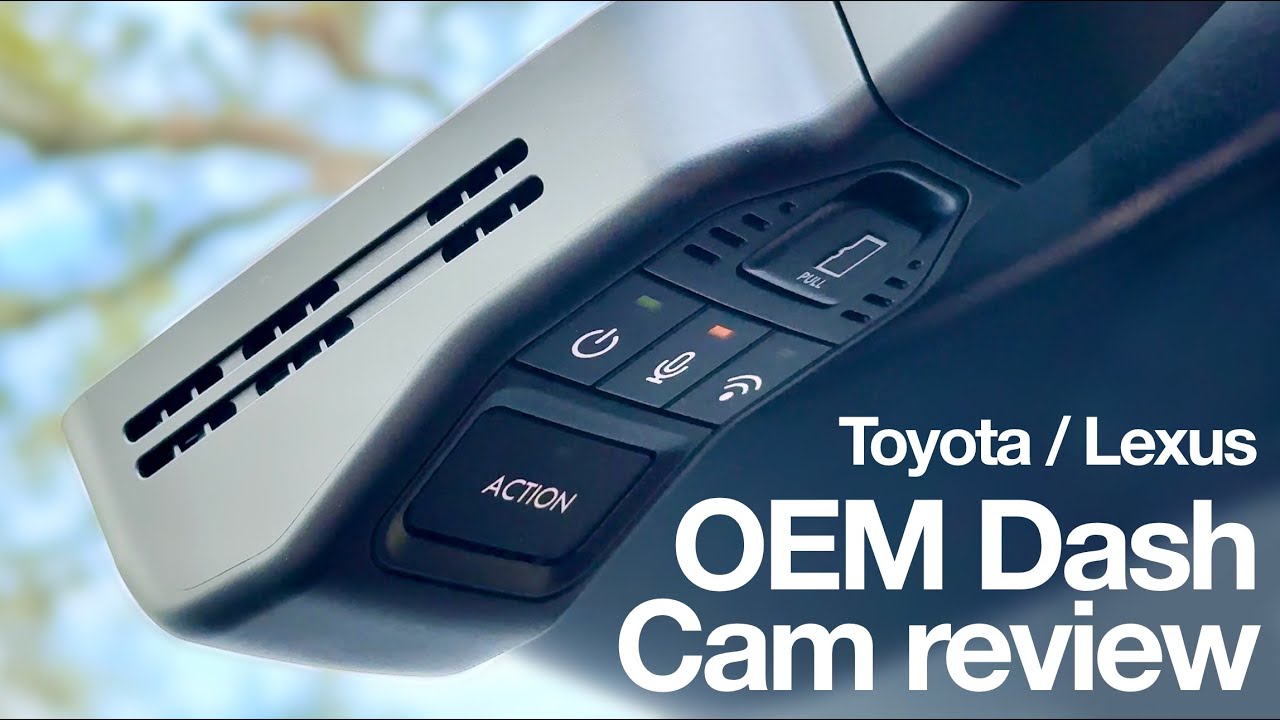
Connecting to a Lexus dash cam usually means pairing it with your phone or vehicle system through Wi-Fi or Bluetooth and accessing the companion app.
If you just bought a new dash cam for your Lexus or you're trying to figure out why your existing one won't sync, I totally get the frustration. I've been there, standing in a parking lot, tapping my phone screen, wondering why the app won't find the camera. The good news is that once you understand the basics, connecting a Lexus dash cam is actually pretty simple. In this guide, I'll walk you through every step, share some personal tips, and help you avoid the common mistakes that waste time.
What You Need Before Connecting a Lexus Dash Cam
Before you start tapping buttons, it's smart to gather everything you'll need. A little prep goes a long way and saves you from mid-setup headaches.
First, make sure you have the dash cam itself, fully charged or properly mounted and powered. Next, grab your smartphone since most Lexus dash cams connect through a mobile app. You'll also want a stable Wi-Fi or Bluetooth connection, depending on the model. Finally, keep your vehicle parked in a spot with good signal so the pairing process doesn't drop mid-way.
It's like making coffee: you don't want to start brewing only to realize you're out of filters. Get your tools ready, and the rest flows smoothly.
Step-by-Step Guide: How to Connect to Lexus Dash Cam
Power On the Dash Cam
Start your car or turn the ignition to accessory mode. This gives power to the dash cam. Most Lexus dash cams light up automatically when the car starts, but some require you to press a power button manually. Wait for the indicator light to turn solid or blink, which means the device is ready.
Download the Companion App
Lexus dash cams usually work with a specific mobile app, often called the Toyota/Lexus Dash Camera app or a third-party app like Thinkware or BlackVue, depending on your model. Head to the App Store or Google Play, search for the app that matches your dash cam, and install it. Make sure you're downloading the official version to avoid fake apps that can cause issues.
Enable Wi-Fi or Bluetooth on Your Phone
Open your phone's settings and turn on Wi-Fi and Bluetooth. Many Lexus dash cams create their own Wi-Fi network, so your phone will need to connect to it directly, not your home Wi-Fi. This is a common stumbling block. People forget to switch from their home network, and then the camera won't show up.
Connect Your Phone to the Dash Cam
Open the app and follow the on-screen prompts. It will usually ask you to select your dash cam from a list of nearby devices. Tap the camera's name, and the app will pair with it. Some models display a default password on the camera or in the manual. Enter it when prompted, and you're connected.
Adjust Settings and View Footage
Once paired, you can preview live footage, adjust recording quality, and download saved clips. The app interface is usually pretty intuitive, with buttons for playback, settings, and file management. Take a few minutes to explore so you know where everything is when you actually need it.
I remember the first time I set up mine. I was so eager to see the footage that I skipped the password step, and the app kept disconnecting. Once I entered the default code, everything worked like a charm. Small details like that make a big difference.
Common Connection Problems and How to Fix Them
Even with the right steps, things can go sideways. Here are some issues you might run into and how to handle them.
The Dash Cam Won't Show Up in the App
If your phone doesn't see the camera, make sure the dash cam is in pairing mode. Some models have a dedicated Wi-Fi button you need to press. Also, check that your phone isn't connected to another Wi-Fi network at the same time. Turning airplane mode on and off can reset your phone's connections and help it find the camera.
The App Keeps Disconnecting
A weak signal between your phone and the dash cam can cause dropouts. Try moving your phone closer to the camera, especially during the initial setup. If the problem continues, restart both devices. Sometimes the app cache gets corrupted, so clearing it or reinstalling the app can also help.
Footage Isn't Recording or Saving
If the camera connects but doesn't save clips, check the SD card. It might be full, corrupted, or not properly inserted. Format the card using the app or your computer, and make sure it's a high-endurance card designed for continuous recording. A regular card can wear out fast under constant use.
Forgot the Password
Most Lexus dash cams have a default password printed on the device or listed in the manual. If you changed it and forgot, you can usually reset the camera to factory settings by pressing a small reset button or holding the power button for several seconds. Just remember that resetting will erase your settings.

Tips for a Better Dash Cam Experience
Once you're connected, a few extra tips can help you get the most out of your Lexus dash cam.
Keep the firmware updated. Manufacturers release updates that fix bugs and improve performance. Check the app or the manufacturer's website every few months to see if there's a new version.
Use a high-quality SD card. It might be tempting to grab the cheapest card on the shelf, but dash cams write data constantly, which wears out regular cards fast. Look for cards labeled "high endurance" or "dash cam compatible."
Mount it properly. Place the dash cam behind the rearview mirror so it doesn't block your view. Make sure it's secure but not so tight that you can't adjust it later.
Review footage regularly. Don't wait until you need the footage to find out the camera wasn't recording. Check it once a week to make sure everything is working as it should.
I learned this the hard way. After a minor fender bender, I reached for the footage only to find out my SD card had failed. Now I check it regularly and replace the card every year, just to be safe.
Why Connecting Your Lexus Dash Cam Matters
A dash cam is more than just a gadget. It's your silent witness on the road. Whether it's capturing a scenic drive, proving you weren't at fault in an accident, or deterring bad behavior from other drivers, the value is real. But none of that matters if you can't actually connect to it and access the footage. Taking the time to set it up properly means you'll have reliable evidence when you need it most.
Think of it like insurance. You hope you never need it, but when the moment comes, you'll be glad you took the time to prepare.
Differences Between Built-In and Aftermarket Lexus Dash Cams
Lexus offers built-in dash cams on some models, and there are also plenty of aftermarket options. The connection process can vary depending on which type you have.
Built-in dash cams often integrate with the Lexus infotainment system, so you might access footage through the car's display rather than a phone app. Aftermarket dash cams almost always rely on a separate app and Wi-Fi connection. Both work well, but the setup steps are different. If you're not sure which type you have, check your owner's manual or look for a camera built into the windshield near the rearview mirror.
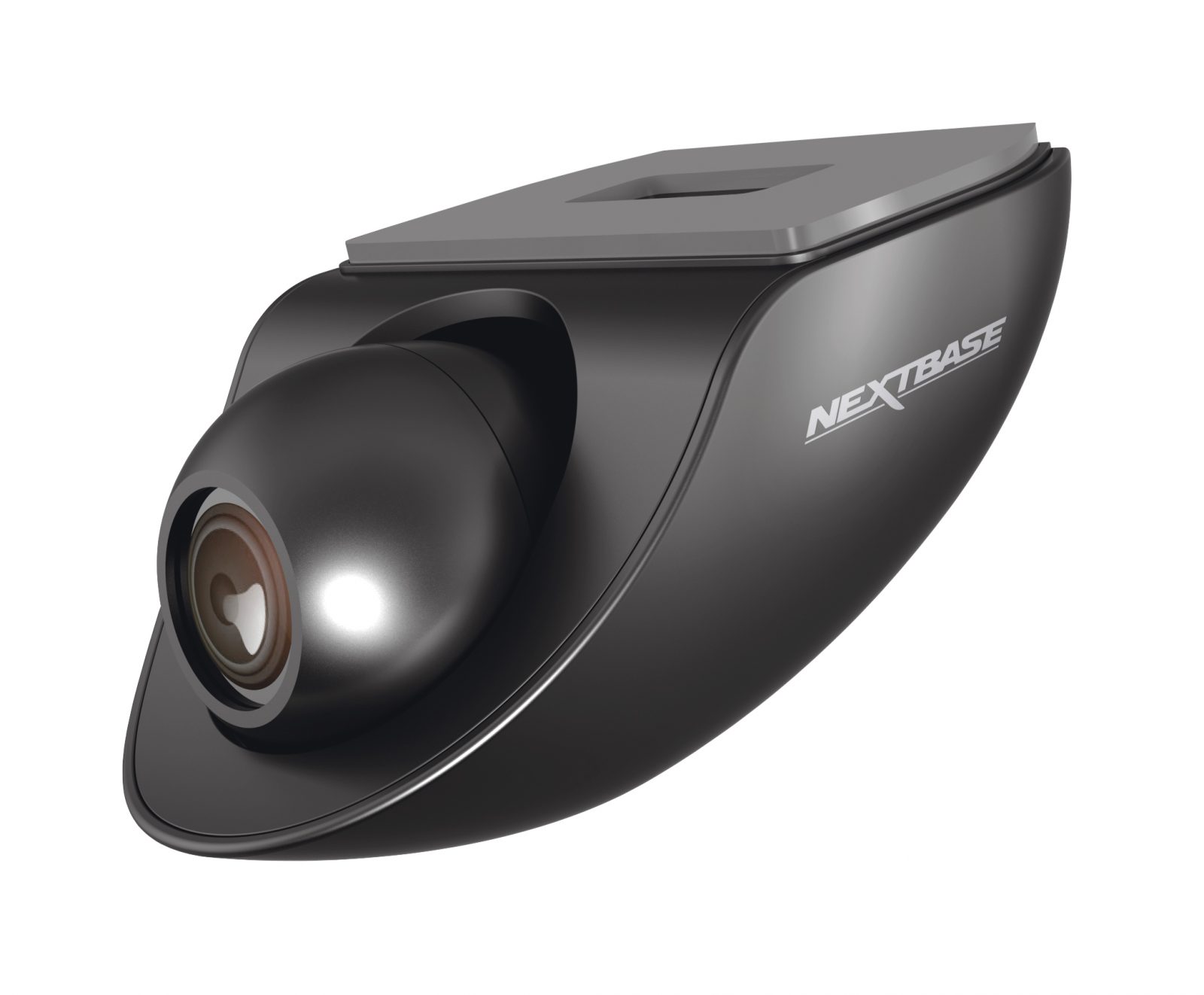
Safety Tips While Setting Up Your Dash Cam
Connecting your dash cam shouldn't be done while driving. Always pull over to a safe spot before you start pairing or adjusting settings. If you're mounting the camera for the first time, take your time to position it correctly. A poorly placed camera can block your view or capture mostly sky instead of the road. Also, make sure cables are tucked away so they don't interfere with your driving.
Frequently Asked Questions
Do all Lexus dash cams connect the same way?
Not necessarily. Built-in models may connect through the car's infotainment system, while aftermarket models usually use a smartphone app. Always check the manual for your specific model.
Can I connect my Lexus dash cam without an app?
Some built-in systems allow you to view footage directly on the car's display. However, most aftermarket dash cams require an app for live viewing and settings.
Why won't my phone find the dash cam Wi-Fi?
Make sure the dash cam is powered on and in pairing mode. Also, confirm your phone's Wi-Fi is on and that it's not already connected to another network.
How do I reset my Lexus dash cam?
Most models have a reset button or require you to hold the power button for 10 to 15 seconds. Check the manual for exact instructions, as resetting will restore factory settings.
Is it safe to leave the dash cam connected all the time?
Yes, it's designed for continuous use. Just make sure the SD card is high quality and the firmware is updated regularly to avoid glitches.
Final Thoughts
Connecting a Lexus dash cam doesn't have to be a mystery. With the right prep, the correct app, and a little patience, you'll be recording and reviewing footage in no time. Remember to keep your firmware updated, use a reliable SD card, and check the camera regularly. These small habits ensure your dash cam is ready when you need it most. If you found this guide helpful, feel free to share it with fellow Lexus owners or drop a comment with your own tips and experiences.