
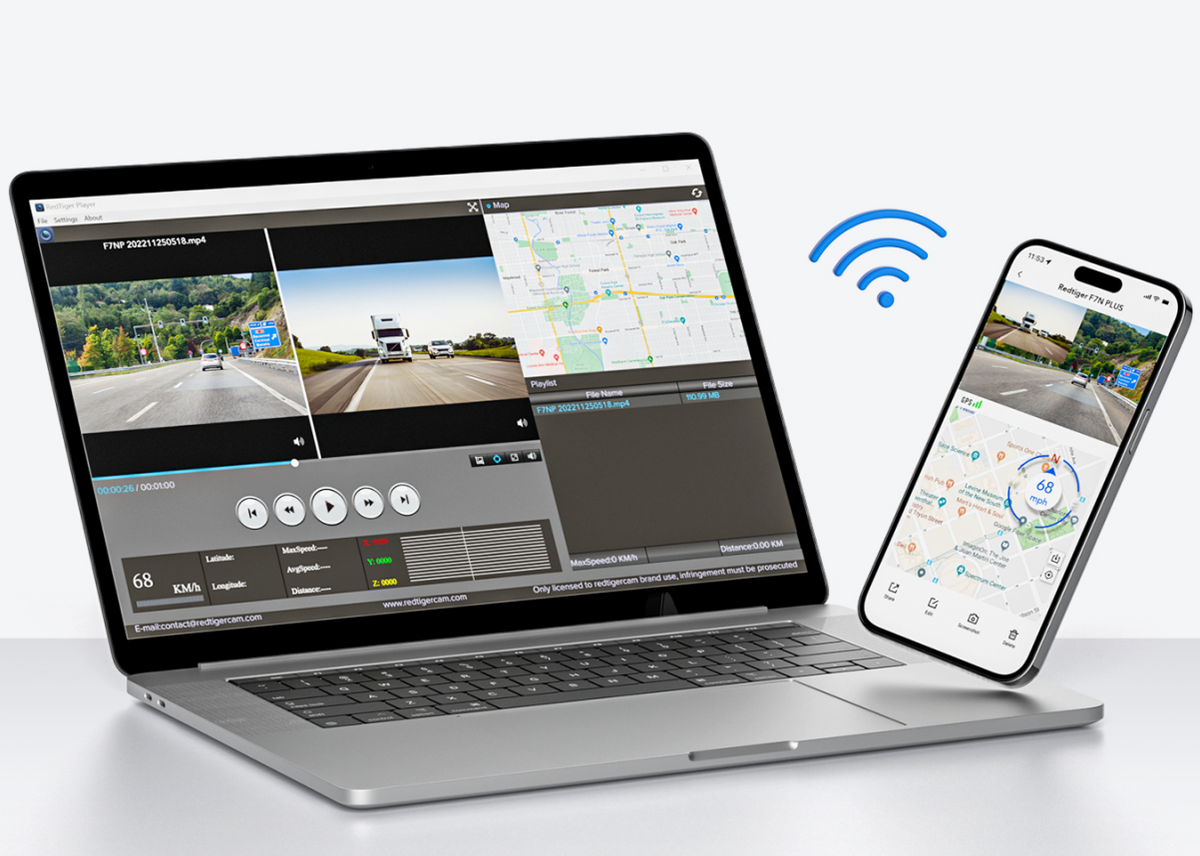
You can view dash cam footage on your phone by using the dash cam's built-in Wi-Fi and a companion app, connecting the SD card with an adapter, or plugging the camera into your phone with a USB cable. It's a quick process once you know the right steps.
I've been reviewing and testing dash cams for years, and one of the most common questions I get is how to actually pull footage off the device and onto a phone. Some people want to share a clip on social media, while others need to save evidence after a fender bender. Whatever the reason, getting that video to your phone shouldn't feel like rocket science. The truth is, most modern dash cams make this pretty simple, but the exact method depends on the type of camera you own. In this guide, I'll walk you through every way I know to view dash cam footage on your phone, step by step, so you can stop fiddling with cables and start watching your videos in minutes.
Understanding How Dash Cams Store Footage
Before we dive into the actual steps, it helps to know where your footage lives in the first place. Most dash cams record onto a small memory card called a microSD card. This little card is the heart of your dash cam, storing hours of video, audio, and sometimes GPS data. When the card fills up, the camera usually loops and overwrites the oldest files, which is why it's called loop recording.
The way you get that footage onto your phone depends on three main things: the type of dash cam, the storage method, and the connectivity options. Some cameras have Wi-Fi built in, some have Bluetooth, and others rely purely on the SD card. Knowing this saves you a lot of guesswork later.
Think of it like this: your dash cam is the mailbox, the SD card is the letter inside, and your phone is the destination. You just need the right key to open the box and deliver the message.
How to View Dash Cam Footage on Phone Using the Dash Cam App and Wi-Fi
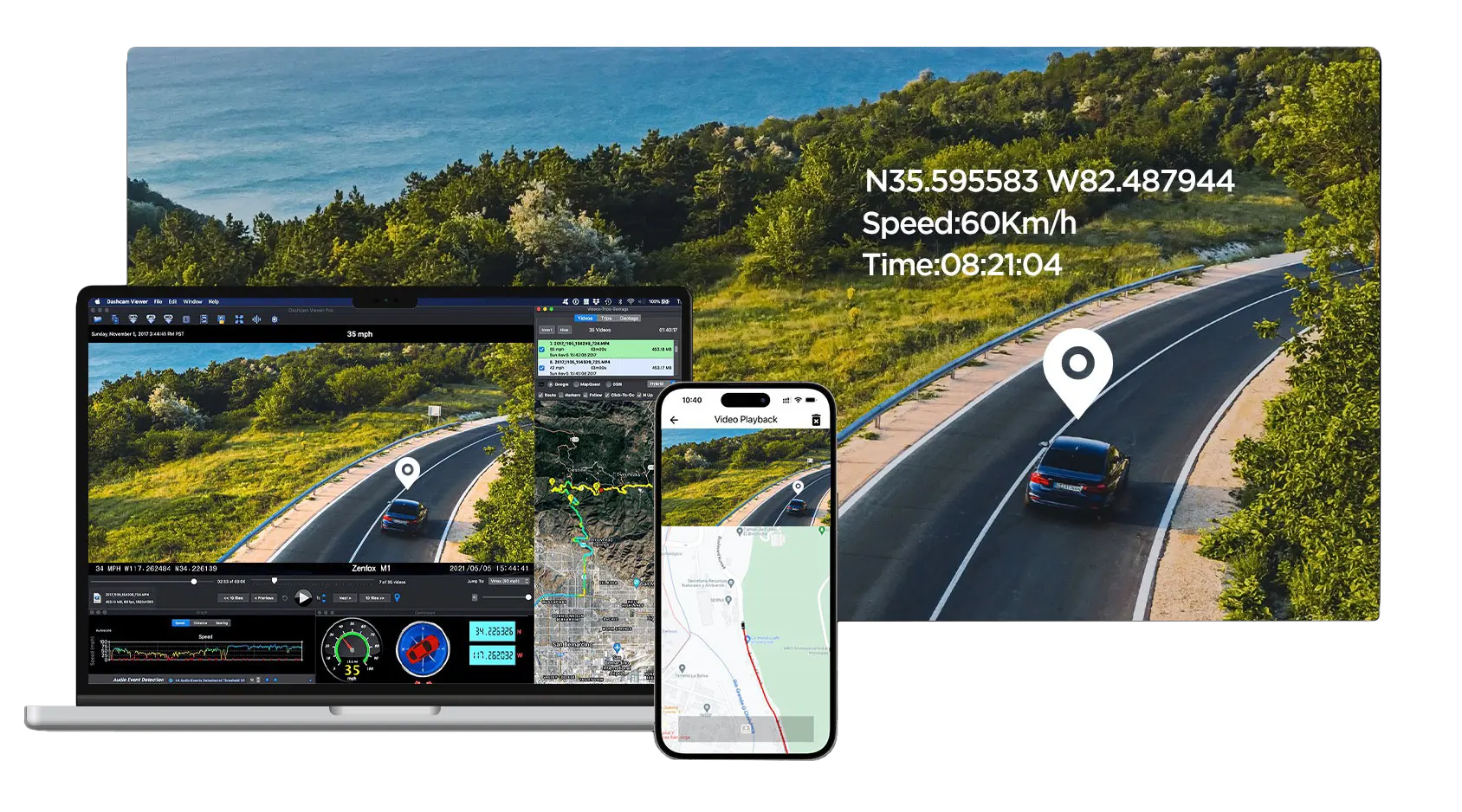
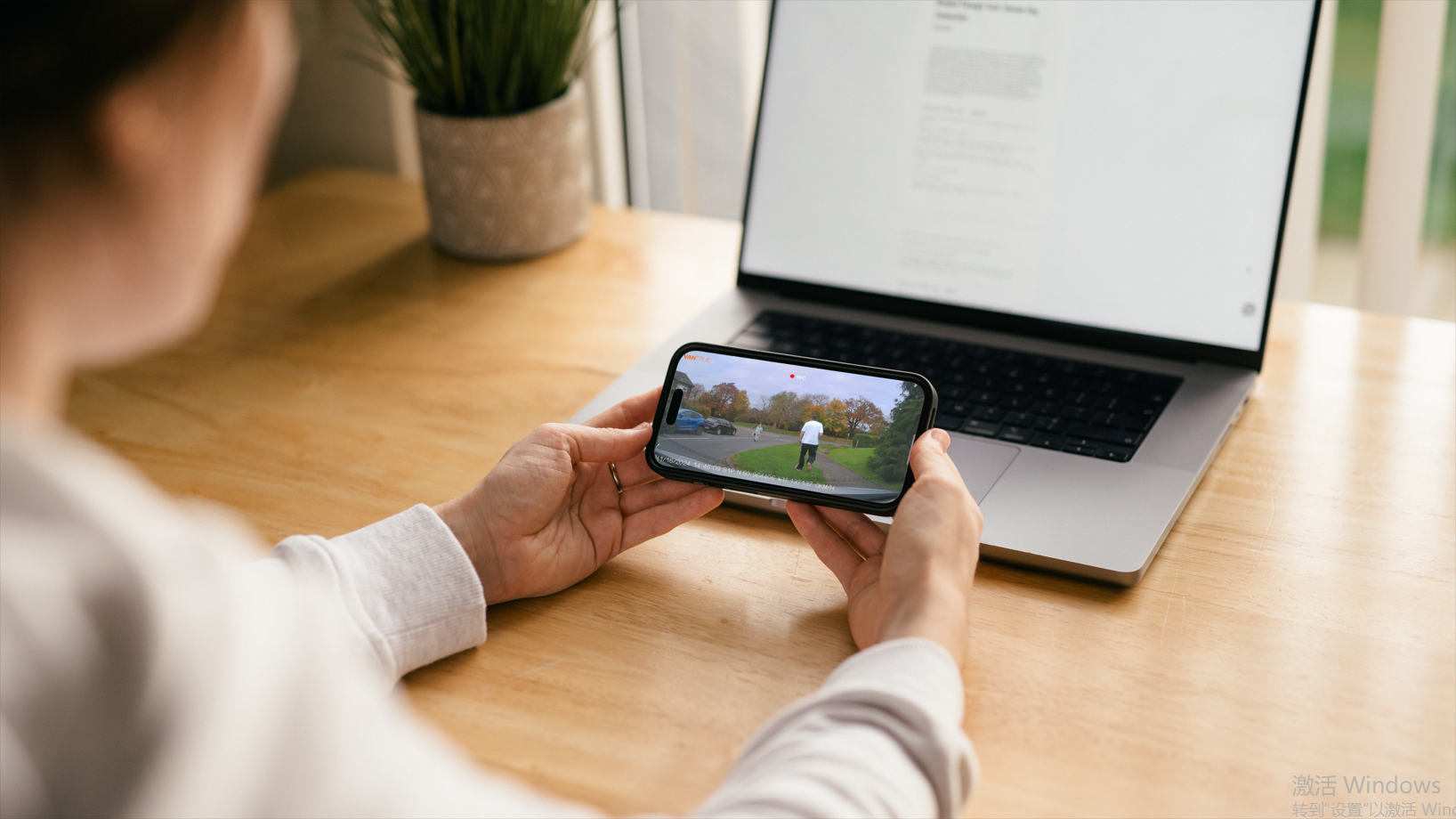
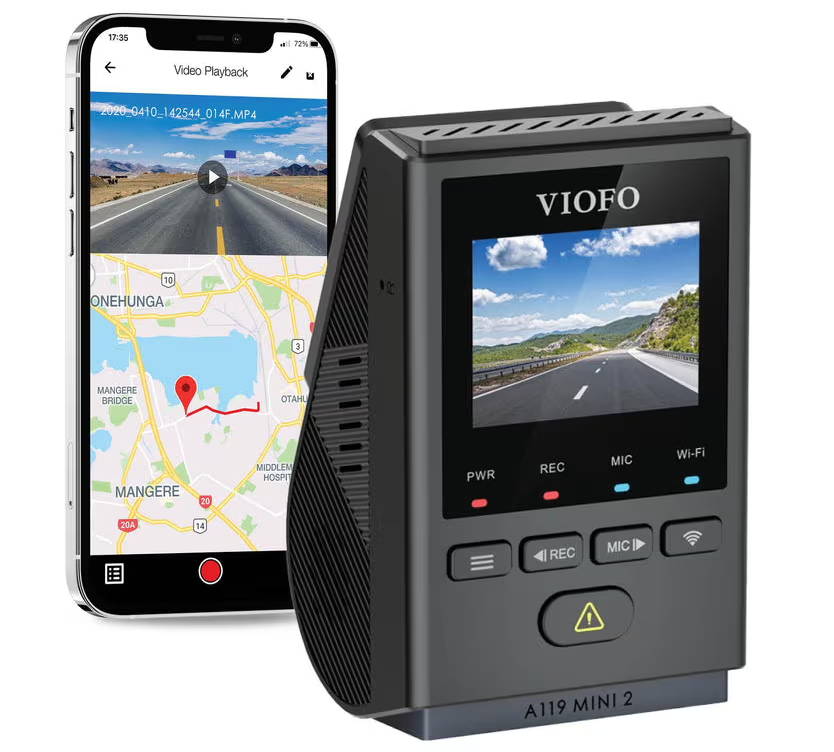
This is hands down the easiest and most popular method, and it's the one I use almost every time. Most modern dash cams from brands like Viofo, Nextbase, Garmin, and Thinkware come with a companion app. These apps let you connect your phone to the dash cam over Wi-Fi so you can see a live view, play back recorded clips, and download them straight to your phone's gallery.
Here's how the process usually works:
- Power on your dash cam and make sure it's fully booted up. Most cameras take a few seconds to start recording.
- Open the dash cam's settings menu on the device itself and turn on Wi-Fi. Some cameras have a dedicated Wi-Fi button, while others bury it in the settings.
- On your phone, go to the Wi-Fi settings and look for a network name that matches your dash cam brand, like "Viofo_A139_XXXX" or "Nextbase_XXXX."
- Connect to that network using the default password. You can usually find this password in the dash cam's user manual or on a sticker inside the box. Common default passwords are 12345678 or 00000000.
- Once connected, open the dash cam's app. The app will automatically detect your camera and show you a live feed.
- Tap the playback or file icon in the app. You'll see a list of recorded videos organized by date and time.
- Pick the clip you want to watch, hit play to preview it, and then tap download to save it to your phone.
From my own experience, this method is a lifesaver after an incident. I once had a minor parking lot bump and was able to pull the clip onto my phone in under two minutes, then immediately share it with the other driver's insurance company. It felt like having a tiny detective in my glove box.
A few things to keep in mind: when your phone is connected to the dash cam's Wi-Fi, you usually lose access to the internet. So if you need to upload a clip right away, download it first, then switch back to your home Wi-Fi or mobile data.
How to View Dash Cam Footage on Phone Using the SD Card
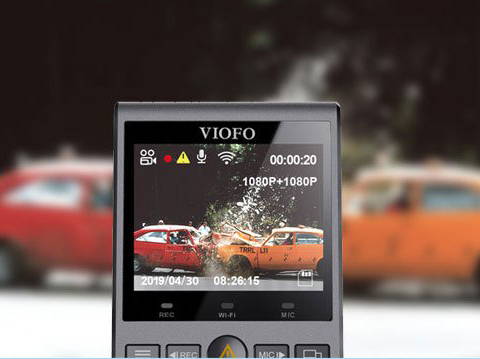
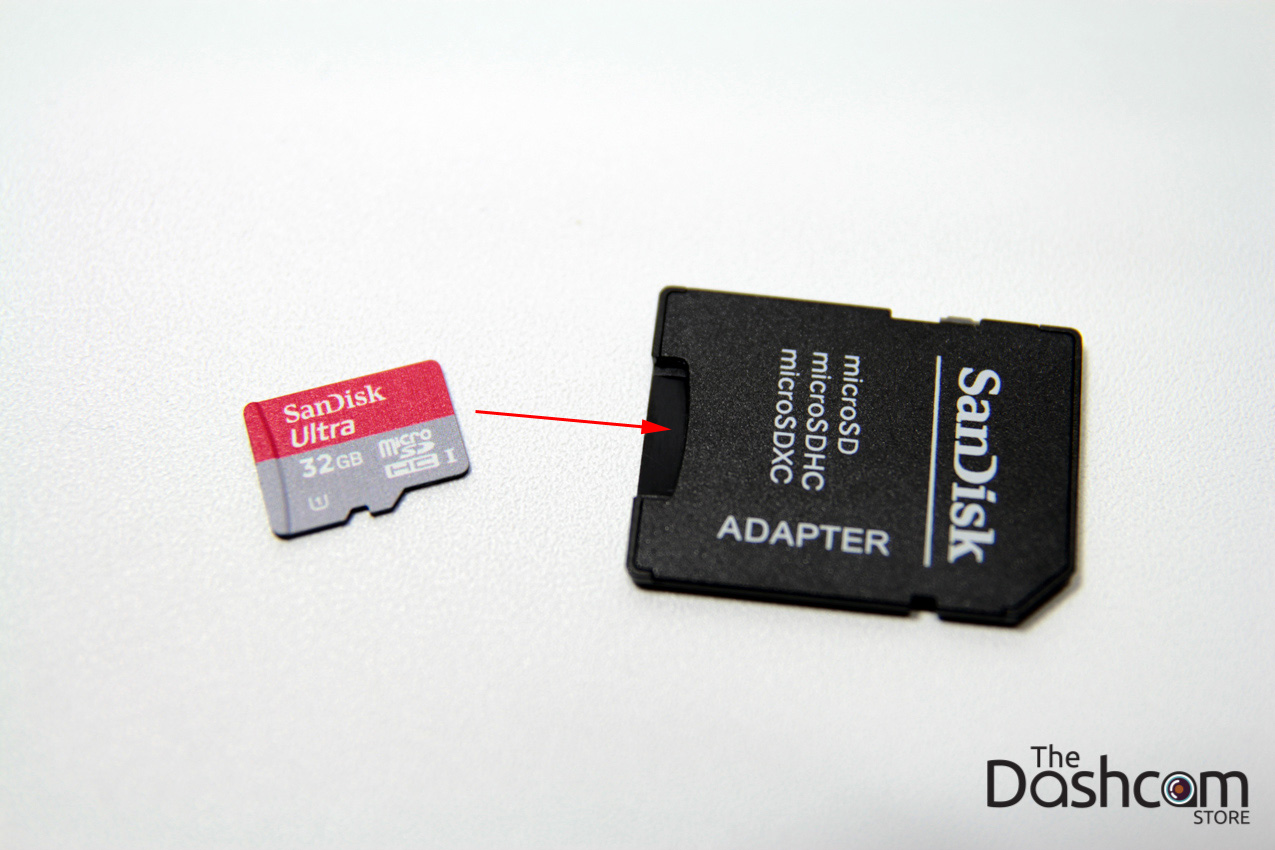
If your dash cam doesn't have Wi-Fi, or the app is being stubborn, you can always go old school and use the SD card. This method works on every single dash cam out there because they all use microSD cards to store footage. The only thing you need is a way to read that card with your phone.
Here are the easiest ways to do it:
- Use a microSD to USB-C or Lightning adapter. These little dongles plug into your phone's charging port and have a slot for the SD card. For iPhones, Apple makes a Lightning to SD card adapter, though it works better with standard SD cards. For Android phones, any USB-C to microSD adapter will do.
- Use an OTG card reader. If you have an Android phone that supports USB On-The-Go, a small OTG adapter is a cheap and reliable way to read your dash cam's memory card. Just plug the adapter into your phone, insert the card, and open your phone's file manager.
- Use a wireless SD card reader. These are small battery-powered devices that create their own Wi-Fi network. You pop your dash cam's SD card into the reader, connect your phone to the reader's Wi-Fi, and view the files through a companion app.
I personally keep a USB-C microSD adapter in my glove box at all times. It's saved me more than once when I needed footage but didn't have time to mess with apps or connections. The downside is that some Android phones don't supply enough power through the port to read the card reliably, so a powered reader can help in those cases.
Once your phone recognizes the card, just open your gallery or file manager, navigate to the DCIM or VIDEO folder, and tap on the file you want to play. You can then save it, share it, or back it up to the cloud.
How to View Dash Cam Footage on Phone Using a USB Cable
Some dash cams, especially higher-end models, let you connect directly to your phone using a USB cable. This method is less common than Wi-Fi, but it's worth knowing because it tends to be more stable and doesn't drain your phone's battery as fast.
Here's how it usually works:
- Plug the USB cable into the dash cam's data port. Make sure it's a data cable, not just a charging cable. Some dash cams use mini-USB, micro-USB, or USB-C.
- Connect the other end to your phone.
- On your phone, pull down the notification shade and tap the USB connection notification. Choose "File Transfer" or "MTP" mode.
- Open your file manager app and look for the dash cam in the list of devices.
- Browse the folders, find the video you want, and copy it to your phone's internal storage.
This is the method I use when I'm dealing with large 4K files that choke up the Wi-Fi connection. It's faster and more reliable, especially for high-bitrate recordings.
Common Issues When Viewing Dash Cam Footage on Phone
Even with the best gear, things can go wrong. Here are some of the most common problems people run into, along with the fixes I've used over the years:
- Wi-Fi won't connect. Make sure you're connecting to the dash cam's network, not your home Wi-Fi. Also, double-check that you've entered the correct password.
- App can't find the camera. Try restarting both the phone and the dash cam. Sometimes the app just needs a fresh start.
- Videos play with glitches or stuttering. This usually means the SD card is slow or failing. Use a high-endurance card from a trusted brand like SanDisk or Samsung.
- Files won't play on the phone. Some dash cams use a special format or codec. If your phone struggles, try downloading a free player like VLC, which handles almost every video format out there.
- Phone says the card is corrupted. Don't panic. Eject the card safely, pop it back into the dash cam, and let the camera reformat it. Always back up important clips first.
Tips for Getting the Best Results When Transferring Dash Cam Videos
After hundreds of transfers, I've learned a few tricks that make the process smoother:
- Keep your dash cam's firmware up to date. Manufacturers often release updates that fix bugs and improve app connectivity.
- Use a high-quality microSD card. Cheap cards cause corrupted files, freezing, and failed transfers. Stick with cards labeled "high endurance" or "dash cam rated."
- Format your SD card every month or two. This keeps the file system healthy and prevents errors.
- Download clips right after an incident. Don't wait weeks to pull footage, because loop recording will eventually overwrite it.
- Back up important clips to the cloud. Once the video is on your phone, upload it to Google Drive, iCloud, or Dropbox so you have a second copy.
Frequently Asked Questions
Can I view dash cam footage without removing the SD card?
Yes, if your dash cam has built-in Wi-Fi or Bluetooth, you can stream and download footage directly to your phone without ever touching the SD card. Just connect through the app.
Why won't my phone connect to my dash cam's Wi-Fi?
Most connection problems come from wrong passwords or interference. Make sure your dash cam is powered on, Wi-Fi is enabled, and you're using the correct password from the manual. Also, try standing closer to the camera.
Can I view dash cam footage on both iPhone and Android?
Yes, most dash cam brands offer apps for both iOS and Android. Just download the correct app from the App Store or Google Play, and the steps are nearly identical on both platforms.
Do dash cam apps work without internet?
Yes. The connection between your phone and the dash cam is a local Wi-Fi link, not an internet connection. The app works fine even if you have no cell service or Wi-Fi at home.
How do I share dash cam footage from my phone?
Once the video is downloaded to your phone, you can share it just like any other video. Use messaging apps, email, social media, or cloud storage. Some dash cam apps also have a built-in share button.
Conclusion
Learning how to view dash cam footage on your phone is one of those small skills that pays off big when you actually need it. Whether you prefer the convenience of a Wi-Fi app, the simplicity of an SD card adapter, or the reliability of a USB cable, there's a method that fits your setup. The key is to practice before an emergency happens, so you're not fumbling with passwords and cables when you actually need that video.
I always tell people to do a test run right after they install a new dash cam. Download a clip, share it, and get comfortable with the process. That way, when the unexpected happens, you can pull the footage, share it, and let the video do the talking.