To save video on the Rove R2 4K dash cam, you can either lock a specific clip using the emergency button, or rely on loop recording that auto-saves footage to the microSD card once the card fills up. Once you understand the difference between locked and unlocked files, you can easily pull them off the camera using the app, your phone, or a computer. I have spent dozens of hours behind the wheel with the R2, and I can tell you that the recording system is simple once you know where to look.
If you have just bought this dash cam, or you are still trying to figure out why some clips stay on the card and others disappear, this guide will walk you through exactly how saving works, how to protect the clips you need, and how to pull them off the device without losing a single second of footage. By the end, you will feel like you have been using the Rove R2 4K for years.
Understanding How the Rove R2 4K Dash Cam Saves Video
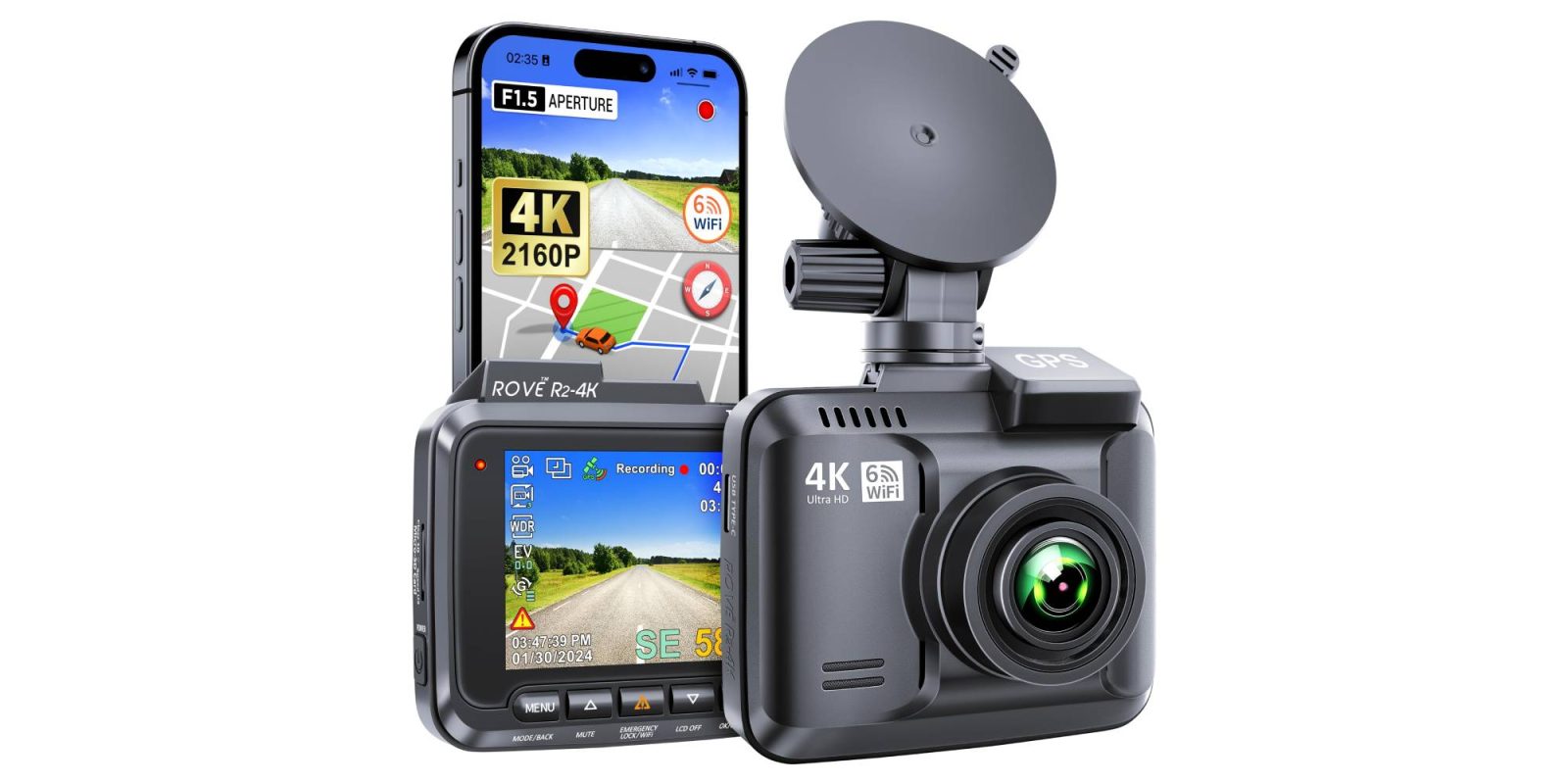
The Rove R2 4K dash cam saves video automatically as soon as it powers on and starts recording. There is no need to press record every time you drive. The camera uses a microSD card as its main storage, and it writes new files on top of the oldest ones when the card gets full. This system is called loop recording, and it is one of the main reasons dash cams like the Rove R2 can keep recording for days, weeks, or even months without you ever touching the card.
The camera splits each recording into short clips, usually 1, 3, or 5 minutes long, depending on what you set in the menu. When one clip ends, the next one starts without any gap, so you always have continuous coverage. Each clip gets a time and date stamp, which is helpful if you ever need to use the video as evidence.
Even though loop recording keeps things simple, it can also wipe out important clips if you do not protect them in time. That is why the Rove R2 4K also gives you a way to lock files so they do not get deleted by the loop.
Loop Recording and Auto Save Explained
Loop recording is the heart of how the Rove R2 4K saves video. Think of it like a revolving door for your footage. The camera always saves the newest clips, and when the card is full, it quietly overwrites the oldest unlocked clips to make room. The video files never stop writing as long as the camera has power.
The Rove R2 4K dash cam comes with a G-sensor, which is a small motion detector inside the device. If the camera feels a sudden bump, a hard brake, or a crash, the G-sensor automatically locks the current clip and marks it as protected. These locked files are kept in a separate folder on the SD card, and the loop recording will not touch them.
This means you do not have to lift a finger during a real emergency. The dash cam detects the impact, saves the clip instantly, and keeps it safe until you pull it off manually. From personal experience, this feature once saved me when someone rear-ended my car at a stop light. The locked clip had a clear view of the impact, the license plate, and the exact second the collision happened. Without that protected file, the evidence would have been overwritten within a day or two.
How to Manually Save a Video Clip on the Rove R2 4K
Sometimes you need to save a clip that is not tied to a crash. Maybe you saw something funny, a dangerous driver, or a beautiful stretch of road you want to keep. In that case, you can manually lock a clip so it does not get deleted.
Here is how to do it step by step.
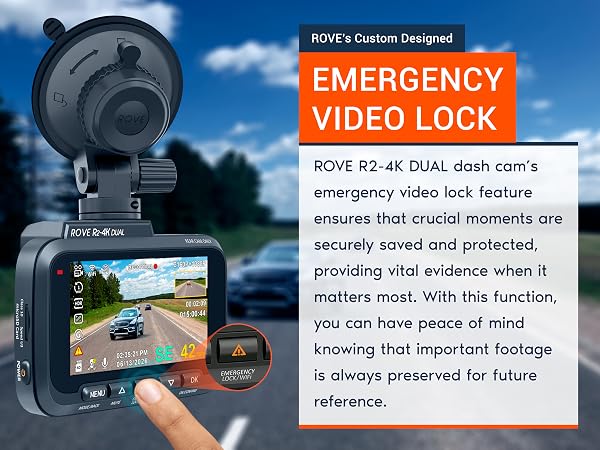
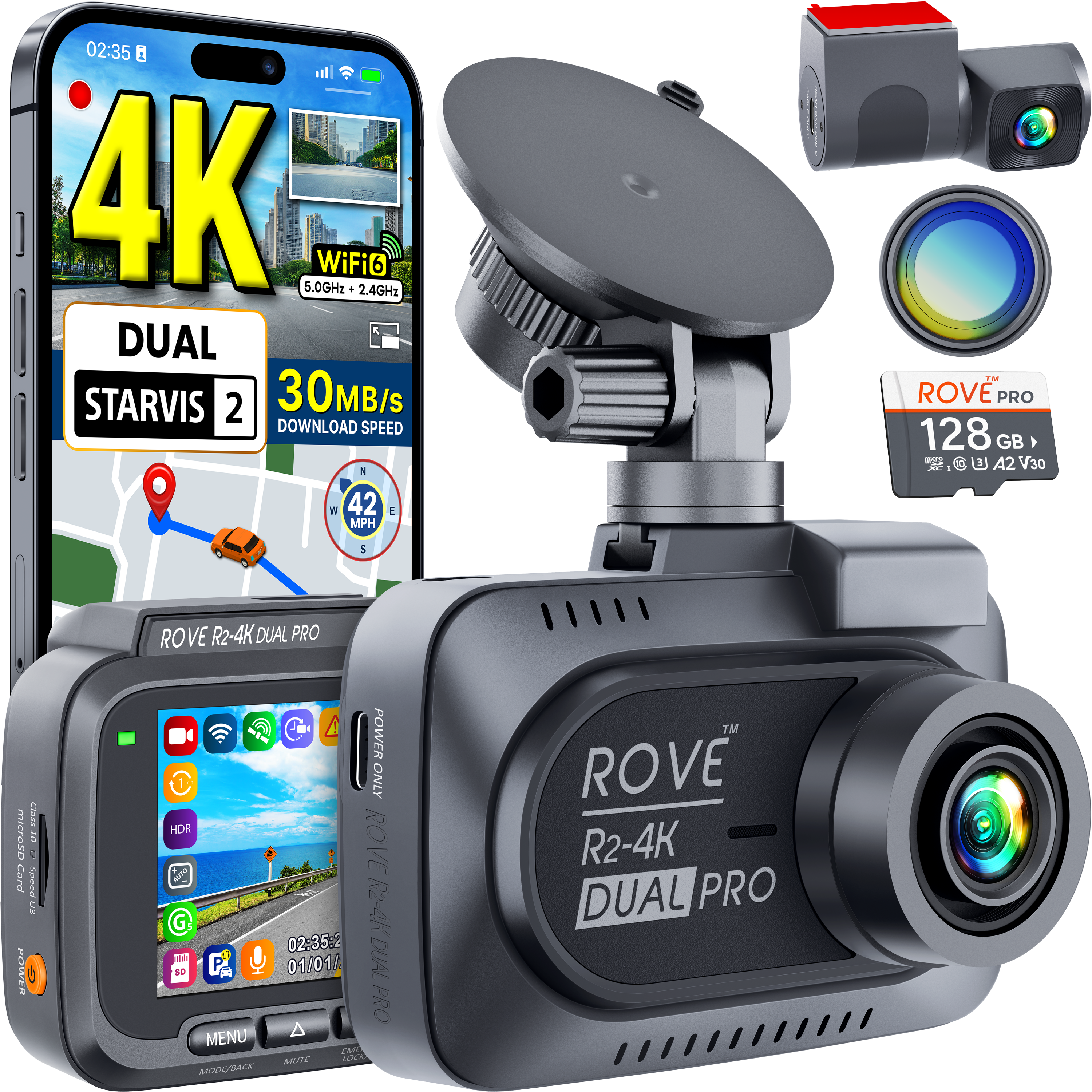
- While the camera is recording, tap the small button with the lock icon on the back of the dash cam. You will see a small lock symbol pop up on the screen, which confirms the current clip is now protected.
- The locked clip will be moved to a special folder on the microSD card. You can review it later by stopping the recording, opening playback mode, and looking for the files marked with a lock icon.
- If you want to unlock a clip later, you can do that from the playback menu as well. Just choose the clip, press the menu button, and select unlock or delete.
This little lock button is one of the most useful features on the Rove R2 4K. It gives you full control over what stays on the card and what gets cleaned up by the loop. If you ever see something worth keeping, do not wait. Lock the clip right away or the loop recording might overwrite it before you get home.
Changing Video File Length and Quality Settings
The Rove R2 4K lets you choose how long each recorded clip should be. This setting controls how often the camera creates a new file while you are driving.
You can pick from 1 minute, 3 minutes, or 5 minute loops inside the video settings menu. Shorter loops make it easier to find a specific moment later, while longer loops mean fewer files and less chance of missing a few seconds between clips.
You can also pick the video resolution, ranging from 4K down to 720p. Higher resolutions give you sharper detail, which is great for reading license plates, but they also create much larger files. A 1 minute 4K clip can be over 200 MB, while the same clip in 1080p may be closer to 100 MB.
If you want to store more footage on the same card, lowering the resolution or shortening the loop length can help. On the other hand, if you want maximum detail for insurance or legal use, stick with the highest 4K setting and use a larger microSD card. The Rove R2 4K supports cards up to 512 GB, which gives you hours of high quality footage.

How to Transfer Saved Videos to Your Phone
The Rove R2 4K has built in WiFi, which lets you connect your phone to the dash cam and pull videos without ever removing the SD card. This is the easiest way to save a clip for sharing or backing up.
Here is how to do it.
- Open the Rove app on your Android or iPhone.
- Turn on the dash cam and press the WiFi button on the device. The screen will show a WiFi name and password.
- On your phone, go to WiFi settings and connect to the dash cam network using the password shown on the screen.
- Open the Rove app again, and you will see a live view from the camera along with a list of recorded clips.
- Tap any video to play it, then hit the download or save button to move it to your phone storage.
Once the video is on your phone, you can share it, upload it, or back it up to the cloud. The WiFi transfer is fast enough for short clips, but if you have a lot of footage, using a computer and a card reader is usually quicker.
From my own use, the WiFi app is perfect for grabbing one or two clips on the go, especially after a minor fender bender when you need to show the other driver what happened right there in the parking lot.
How to Transfer Saved Videos to a Computer
If you want to save a lot of footage at once, the fastest method is to pull the microSD card out of the camera and use a card reader. This is also the most reliable way to back up files before reformatting the card.
Here is the process.
- Power off the Rove R2 4K dash cam.
- Press the microSD card to pop it out of the slot on the side of the camera.
- Insert the card into a USB card reader connected to your computer.
- Open the folder that appears on your screen. You will see folders like Movie, EMER (for emergency locked files), and Photo.
- Copy the files you want to keep and paste them anywhere on your computer, like a folder on your desktop or an external hard drive.
Once you have the files on your computer, you can rename them, sort them by date, or edit them with video software. Always eject the card safely before putting it back into the dash cam to avoid file corruption.

Tips to Avoid Losing Important Clips on the Rove R2 4K
Even with the best dash cam, it is easy to lose a clip if you are not careful. Here are a few tips that have helped me keep my footage safe over the years.
- Always lock important clips as soon as they happen. Do not wait until you get home.
- Use a high quality microSD card from a trusted brand. Cheap cards fail faster and can corrupt your files.
- Format the SD card once every month or two. This keeps the file system clean and prevents errors.
- Do not let the card fill up with locked files. Pull the saved clips off regularly or the loop will run out of space.
- Keep an extra microSD card in your glove box. If one card fails, you always have a backup.
- Check the G-sensor sensitivity. If it is set too high, the camera will lock clips over every small bump. If it is set too low, it might miss a real crash.
These small habits can save you from the frustration of finding out a critical clip was overwritten just when you needed it the most.
Common Questions About Saving Video on the Rove R2 4K
How long does the Rove R2 4K record before it overwrites old footage?
It depends on the size of your microSD card and the resolution you choose. A 128 GB card can hold around 8 to 10 hours of 4K footage, while a 256 GB card can double that. Once the card is full, the loop recording starts overwriting the oldest unlocked files.
Why did my dash cam stop saving clips all of a sudden?
This usually happens when the microSD card is full of locked files, damaged, or needs formatting. Remove the card, back up your important clips, and then format it inside the dash cam menu.
Can I save video while the dash cam is still recording?
Yes. You can press the lock button at any time during recording to protect the current clip. The recording will not stop, and the file will be moved to the protected folder.
Where are locked video files stored on the SD card?
Locked clips are saved in a folder called EMER, while normal loop clips are saved in the Movie folder. You can see both folders when you open the SD card on a computer.
Does the Rove R2 4K save audio along with video?
Yes, audio recording is on by default. You can turn it off in the settings if you do not want to record sound inside the car.
Final Thoughts on Saving Video with the Rove R2 4K Dash Cam
Saving video on the Rove R2 4K is much easier than most people think. The dash cam handles most of the work on its own through loop recording, and the built in G-sensor makes sure that any crash footage is locked away the moment it happens. The lock button gives you manual control for the moments that matter, while the WiFi app and the microSD card slot make it simple to pull clips off the device whenever you need them.
Once you build the habit of locking important clips, formatting the card regularly, and backing up your footage, you will never have to worry about losing a recording again. The Rove R2 4K is built to make saving video effortless, so all you have to do is enjoy the drive knowing your memories and evidence are always safe. If you found this guide helpful, feel free to share it with other drivers, and drop a comment below if you have any questions about your own dash cam setup.