To save video on a dash cam, insert a compatible SD card, format it inside the camera, enable loop recording or event lock, and manually back up important clips before they get overwritten. If you have ever wondered how to keep the footage your dash cam records safe, you are in the right place. Over the years, I have tested dozens of dash cams in my own car, and I have seen how easy it is to lose important video when you do not know the right steps. In this guide, I will walk you through everything you need to know about saving video on a dash cam, from the basics of storage cards to advanced methods like cloud backup. Think of it as a friendly chat with someone who has been through the trial and error so you do not have to.
Understanding Dash Cam Video Storage
Before we get into the how, it helps to understand the how dash cams work. Most dash cams record onto a microSD card that lives inside the camera. The camera writes video files to that card in small chunks, usually one to three minutes long, so the files are easy to manage and recover.
The Role of the SD Card
The microSD card is the heart of your dash cam storage. It is where every frame of video lives until you save, transfer, or delete it. Without a working card, your dash cam is just a fancy camera with nowhere to put its footage.
Loop Recording Explained
Loop recording is a clever feature that makes sure your camera never stops recording just because the card is full. When the card reaches its storage limit, the camera automatically overwrites the oldest file with new video. Think of it like a revolving door for your footage. It keeps the camera running, but it also means important clips can disappear if you do not protect them.
Event or Incident Lock
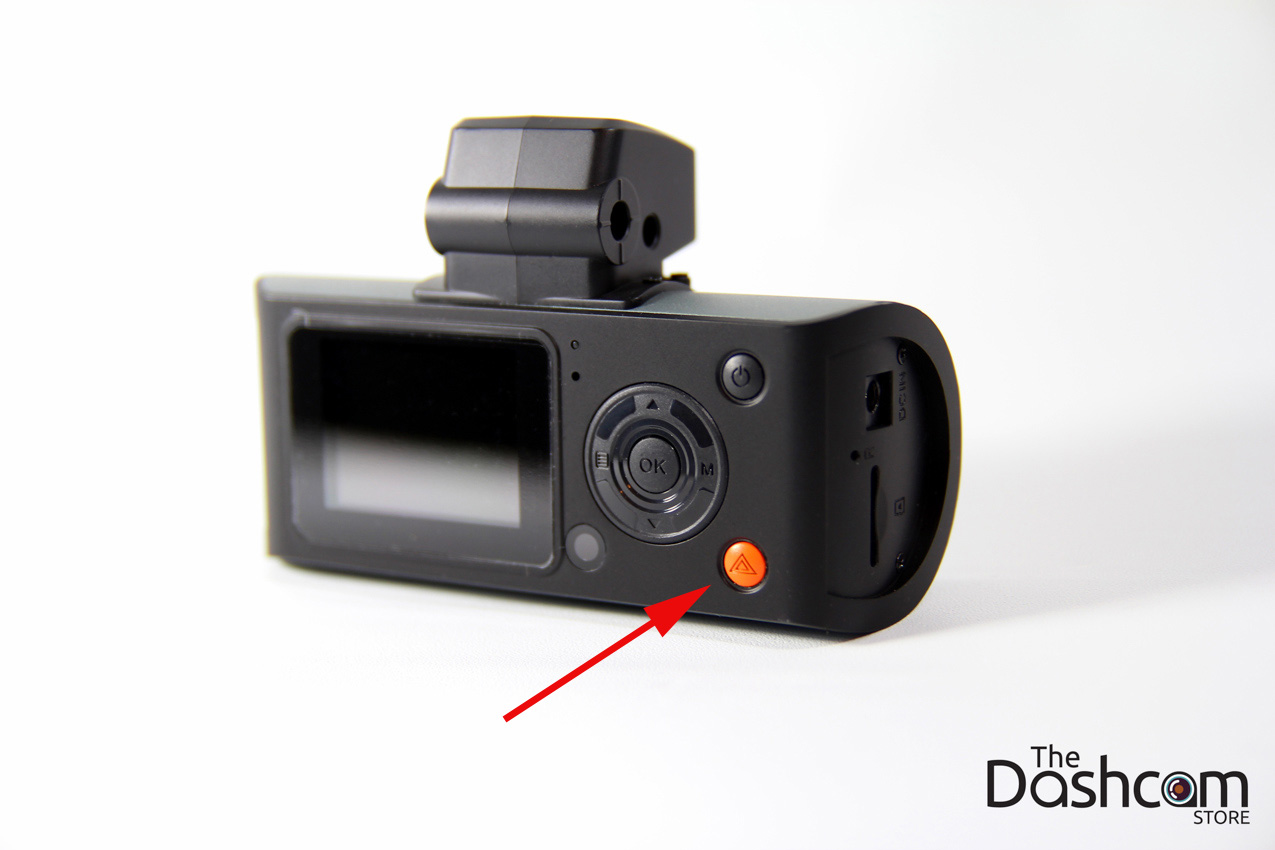
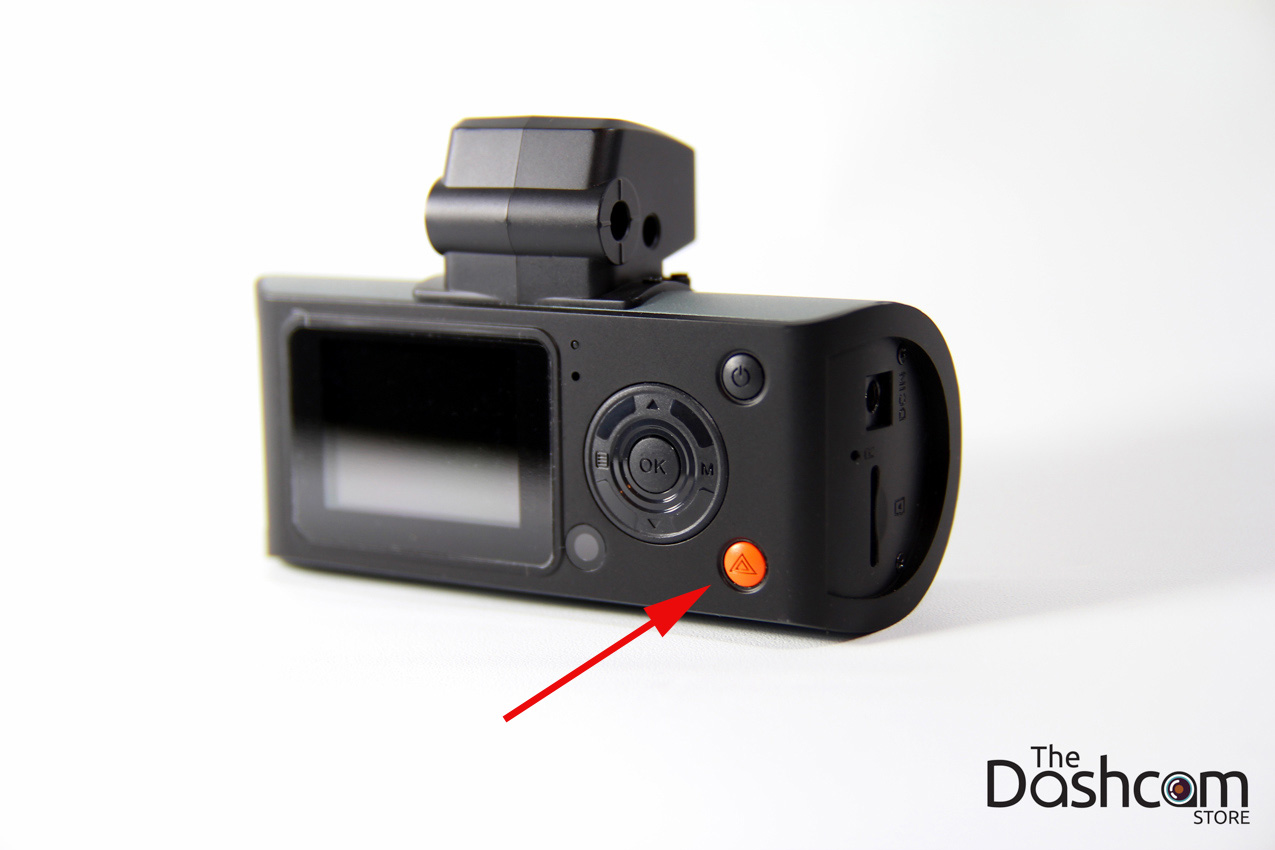
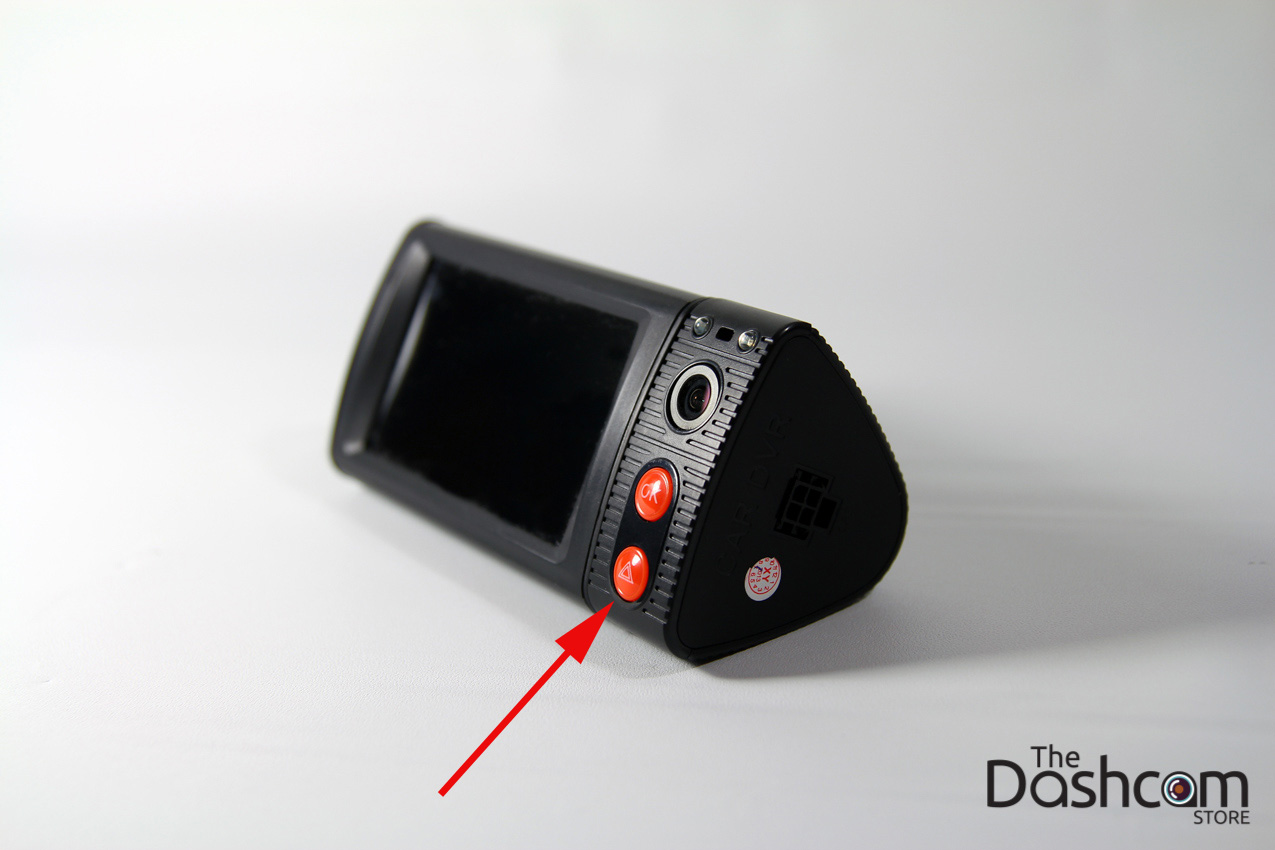
Most modern dash cams have a built in G sensor or accelerometer. When the camera detects a sudden impact, hard brake, or sharp turn, it automatically locks the current clip so loop recording will not erase it. Some cameras also let you press a button to manually lock a file you want to keep.

How to Save Video on a Dash Cam Step by Step
Now that you know the basics, let us go through the exact steps to save video on your dash cam. Whether you own a budget friendly model or a premium one with cloud features, the core process is very similar.
Step 1: Choose the Right SD Card
Not all SD cards are created equal. Dash cams need cards that can handle constant writing and rewriting of data. Look for cards labeled as high endurance or designed for surveillance use.
- Capacity: 32GB to 256GB is a sweet spot for most drivers. Larger cards give you more recording time before loop recording kicks in.
- Speed class: A Class 10 or U3 rated card is ideal. This ensures smooth recording at high resolutions.
- Brand: Stick with trusted brands that specifically market cards for dash cams or security cameras.
A weak or fake card is one of the most common reasons dash cams fail to save footage. I learned this the hard way when a cheap no name card corrupted during a summer road trip and I lost a whole day of scenic driving footage.
Step 2: Format the Card Inside the Camera
Once you insert a new card, always format it using the dash cam menu, not your computer. Formatting inside the camera creates the right file structure and reduces the chance of errors.
- Power on the camera and access the settings menu.
- Look for an option called Format, Storage, or SD Card.
- Confirm and wait for the process to finish.
Doing this once a month also helps keep the card healthy and prevents file system errors that can make videos unreadable.
Step 3: Adjust Recording Settings
Before you hit the road, take a minute to adjust how your dash cam records. These settings directly affect what gets saved and for how long.
- Resolution: 1080p is the most common balance of quality and file size. 4K looks great but fills up your card faster.
- Clip length: One to three minutes per clip is standard. Shorter clips are easier to save and share.
- Loop recording: Keep this on so the camera never stops recording.
- G sensor sensitivity: Set it to medium or low if you drive on rough roads, so every pothole does not lock a file.
Step 4: Save Important Clips Manually
If you see something worth keeping, like a near miss, a beautiful sunset, or an actual accident, do not wait. Save it right away.
- Press the emergency lock button on the camera or remote as soon as it happens.
- Some dash cams let you say a voice command like save video to trigger the lock.
- Check the screen or app to confirm the file icon shows a lock or shield symbol.
Many drivers forget this step and lose footage because loop recording overwrote it within hours. A simple press of a button can save you a lot of stress later.
Step 5: Transfer Video Off the Dash Cam
Saving on the camera is only half the job. You also need to move the file to your phone, computer, or cloud for safekeeping.
- WiFi and app: Many newer dash cams have built in WiFi. Open the companion app, connect to the camera, and download the clip directly to your phone.
- USB cable: Connect the dash cam to your computer with the USB cable. The camera usually appears as a removable drive.
- SD card reader: Pop the microSD card out and use a USB card reader to copy files. This is usually the fastest method.
- Cloud backup: Some premium dash cams, like certain BlackVue or VIOFO models, offer optional cloud storage that uploads footage automatically when on WiFi.
Common Mistakes That Cause Lost Footage
Even with the right steps, small mistakes can wipe out your dash cam videos. Here are the most common ones I have seen and even made myself.
Using the Wrong SD Card
Regular cards are built for occasional photos, not constant video writing. They wear out fast in a dash cam and often fail without warning. Always choose a high endurance card.
Forgetting to Format the Card
Skipping this step can lead to file errors and corrupted clips. A quick monthly format keeps things running smoothly.
Waiting Too Long to Back Up Files
Loop recording does not care how important a clip is. If you forget to back up a locked file, it can still be overwritten if the protected folder fills up.
Ignoring Firmware Updates
Manufacturers often release firmware updates that fix bugs, improve stability, and add new features. Updating your dash cam can prevent random freezes that stop recording.

Advanced Tips for Keeping Dash Cam Videos Safe
If you want to go beyond the basics, there are a few extra tricks that serious drivers use to make sure their footage is always safe.
Use a Dual Camera Setup
Front and rear or interior cameras give you a fuller picture of any incident. If one camera fails, the other might still have the footage you need.
Enable Parking Mode
Parking mode keeps the camera recording when your car is off. It uses a low frame rate or motion detection to save storage. Footage from parking mode is often automatically locked when impact is detected.
Set Up Automatic Cloud Backup
If your dash cam supports it, connect it to a mobile hotspot or home WiFi when parked. This way, important clips upload to the cloud automatically, giving you a copy even if the camera or card is stolen.
Label and Organize Your Files
Once you transfer files to your computer, rename them with the date and a short description. For example, 2025-06-12-rear-end-accident. This makes it much easier to find the clip you need months later.
How Long Can a Dash Cam Record Before Overwriting?
This depends on three main things: the size of your SD card, the resolution of your recordings, and the clip length. Here is a rough idea of what to expect with a 128GB card at 1080p.
- 1080p at 30fps: Around 18 to 24 hours of total footage
- 1440p at 30fps: Around 12 to 16 hours
- 4K at 30fps: Around 6 to 10 hours
If you drive two hours a day, a 128GB card will hold roughly a week of normal driving before loop recording starts erasing old files. This is why locking important clips as soon as they happen is so important.
How to Recover Deleted Dash Cam Videos
Sometimes files get deleted by accident or lost due to card errors. Before you panic, try these steps.
- Stop using the card right away to avoid overwriting the lost data.
- Use a recovery tool like Recuva or Disk Drill on your computer.
- Scan the SD card and look for video files in MP4 or MOV format.
- If the files are badly corrupted, a professional data recovery service may be able to help.
Keep in mind that recovery is not guaranteed, especially if loop recording has already written new data over the old files. This is why regular backups are your best friend.

Best Practices for Long Term Dash Cam Storage
Think of your dash cam like a digital witness. You do not want it to fail when you need it most. A few simple habits will keep it recording reliably for years.
- Replace your SD card every one to two years, even if it seems to be working.
- Keep the camera lens clean so your footage stays clear.
- Check the camera weekly to make sure it is actually recording and the files are playing back.
- Store your dash cam out of direct sunlight when parked for long periods to protect the battery and lens.
How to Share Dash Cam Footage Easily
After you save a clip, you may need to share it with your insurance company, the police, or on social media. Here is the easiest way to do it.
- Use the app to trim the clip to the important part.
- Export it to your phone gallery.
- Share through email, messaging apps, or cloud links.
- Keep the original file backed up in case you need it later.
Most insurance companies accept MP4 files through their claim portals. Sharing a short, clear clip can speed up your claim and protect you from false accusations.
Why Saving Dash Cam Video Matters More Than You Think
A dash cam is not just a cool gadget. It is a silent witness that can protect you in ways you might not expect. From proving you were not at fault in a crash to capturing a hit and run in a parking lot, saved footage can save you thousands of dollars and a lot of headaches. It can even help you report unsafe drivers or beautiful moments you want to remember from a road trip.
Frequently Asked Questions
How do I know if my dash cam is actually saving video?
Check the indicator light or screen icon. Most dash cams show a flashing red dot or a recording symbol when active. You can also play back a recent clip to confirm the camera is writing files correctly.
Why does my dash cam keep saying card error?
This usually means the SD card is full of corrupted files, is not compatible, or has worn out. Try formatting the card in the camera. If the error returns, replace the card with a new high endurance model.
Can I save dash cam videos to my phone?
Yes. Many dash cams have WiFi and a companion app that lets you view, download, and save clips directly to your phone without removing the SD card.
How long do dash cam videos stay on the SD card?
It depends on card size, video quality, and loop recording. With a 128GB card at 1080p, you usually get around 18 to 24 hours of total recording before old files are overwritten.
Is it legal to share dash cam footage online?
In most places, yes, as long as you respect privacy laws. Avoid showing faces or license plates of people who are not involved in an incident, and never share footage that invades someone's personal privacy.
Conclusion
Saving video on a dash cam is simple once you understand how storage, loop recording, and file locking work together. Start by choosing a high endurance SD card, format it inside the camera, and adjust your settings to match your driving habits. Remember to lock important clips right away and back them up to your phone, computer, or cloud as soon as you can. Avoid common mistakes like using cheap cards, forgetting to format, or waiting too long to transfer files. A few minutes of care each month can keep your dash cam ready to capture the moments that matter most. Drive safe, keep your camera rolling, and you will always have a reliable witness riding shotgun. If you found this guide helpful, feel free to share it with a fellow driver or drop a comment below with your own dash cam tips.