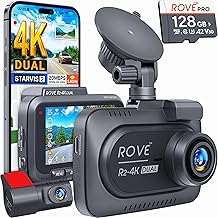
Connecting your Redtiger dash cam to your phone is a straightforward process that takes just a few minutes using the dedicated Redtiger app. Once paired, you can view live footage, adjust settings, and download recordings straight from your phone.
I've been working with dash cams and mobile connectivity for years, and one thing I've learned is that most connection issues come from skipping simple prep steps. The good news is that getting your Redtiger up and running on your phone doesn't require any technical background. Whether you just unboxed it or are switching to a new phone, the process is designed to be user-friendly and quick.

What You Need Before Connecting
Before you start the pairing process, it's worth taking a minute to gather everything you'll need. Think of it like prepping ingredients before cooking. Having everything ready makes the whole experience smoother.
Here is what you should have on hand:
- A fully charged Redtiger dash cam with a memory card installed
- Your smartphone (iOS or Android)
- The Redtiger app downloaded from the App Store or Google Play
- Your car's WiFi or hotspot access (if your dash cam uses WiFi for connection)
Most Redtiger models support WiFi connectivity, which means your phone will connect to the dash cam just like it would connect to any other wireless network. Some newer models also support Bluetooth for the initial pairing, which can make things even easier.
Step-by-Step Guide to Connect Your Redtiger Dash Cam to Your Phone
Now let's walk through the actual connection process. I'll break it down into simple steps so you can follow along without getting lost.
Step 1: Download and Install the Redtiger App
Head to the App Store if you're using an iPhone, or Google Play if you're on Android. Search for the official "Redtiger" app and download it. Make sure you're downloading the official app and not a third-party imitation. The app is free and takes up very little storage space.
Step 2: Power On Your Dash Cam
Turn on your Redtiger dash cam by connecting it to your car's power source. Most models power on automatically when the car starts, but you can also press the power button manually if needed. Give it a few seconds to boot up completely.
Step 3: Enable WiFi on the Dash Cam
On most Redtiger models, you can enable WiFi by pressing the WiFi button on the device itself or by navigating through the on-screen menu. Once enabled, the dash cam will broadcast a WiFi signal that your phone can detect.
Step 4: Connect Your Phone to the Dash Cam's WiFi
Open your phone's WiFi settings and look for a network that starts with "Redtiger" followed by a model number or series of numbers. Tap on it to connect. The default password is usually "12345678" or "1234567890," but check your user manual to confirm.
Step 5: Open the Redtiger App
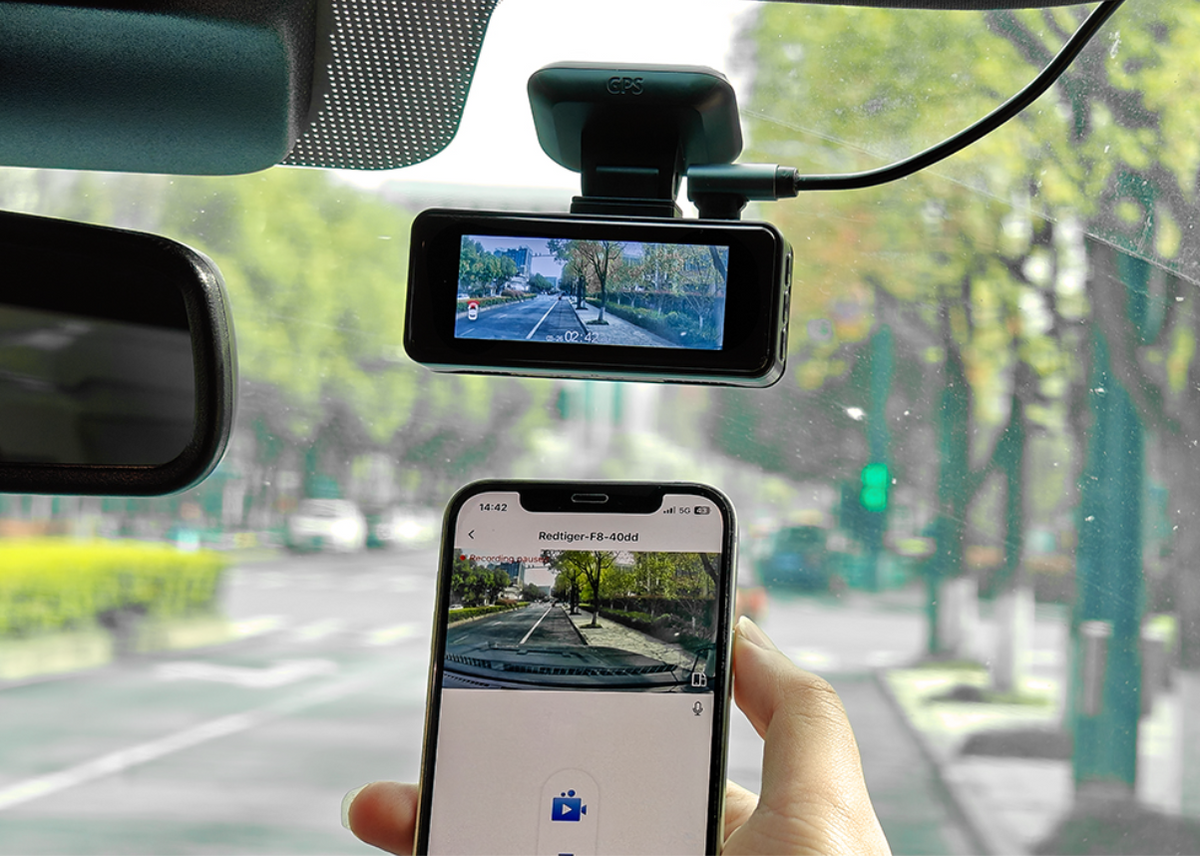
Once your phone is connected to the dash cam's WiFi, open the Redtiger app. You should see a live preview of what your dash cam is recording. From here, you can adjust settings, view recorded footage, and download videos directly to your phone.
Common Connection Issues and How to Fix Them
Even with the simplest devices, things don't always go as planned. Over the years, I've helped plenty of folks troubleshoot their dash cam connections, and a few issues tend to pop up more than others.
Here are the most common problems and what to do about them:
- Phone won't find the dash cam's WiFi: Make sure the dash cam is powered on and WiFi is enabled. Sometimes a quick restart of the dash cam solves the issue.
- Connection keeps dropping: This usually happens when your phone tries to switch back to mobile data or a stronger WiFi network. Turn off auto network switching in your phone settings.
- App won't open or crashes: Check for app updates in your app store. Older versions may not be compatible with newer phone operating systems.
- Live preview is laggy or choppy: Move closer to the dash cam and make sure there are no large metal objects blocking the signal. WiFi signals weaken over distance and through barriers.
Tips for Getting the Best Experience
Once everything is connected, you'll want to make the most out of your Redtiger dash cam and phone pairing. Here are a few tips I always share with friends and family.
First, always download important footage as soon as possible. The dash cam loops recordings, meaning older files get overwritten when the memory card fills up. If something interesting happens on the road, pull the footage onto your phone right away.
Second, adjust your video quality settings within the app. Higher resolution recordings look great but take up more storage space on both the memory card and your phone.
Third, explore the app's settings. You can often adjust sensitivity for the G-sensor, parking mode features, and timestamp settings. Taking a few minutes to customize these can make a big difference in your overall experience.
Lastly, keep your dash cam's firmware updated. Redtiger occasionally releases updates that improve performance and fix bugs. You can usually check for updates through the app or the official website.

Why Connecting Your Dash Cam to Your Phone Matters
You might wonder why anyone would want to connect a dash cam to their phone in the first place. After all, the dash cam already records everything on its own, right? Well, the phone connection adds a whole new layer of convenience and control.
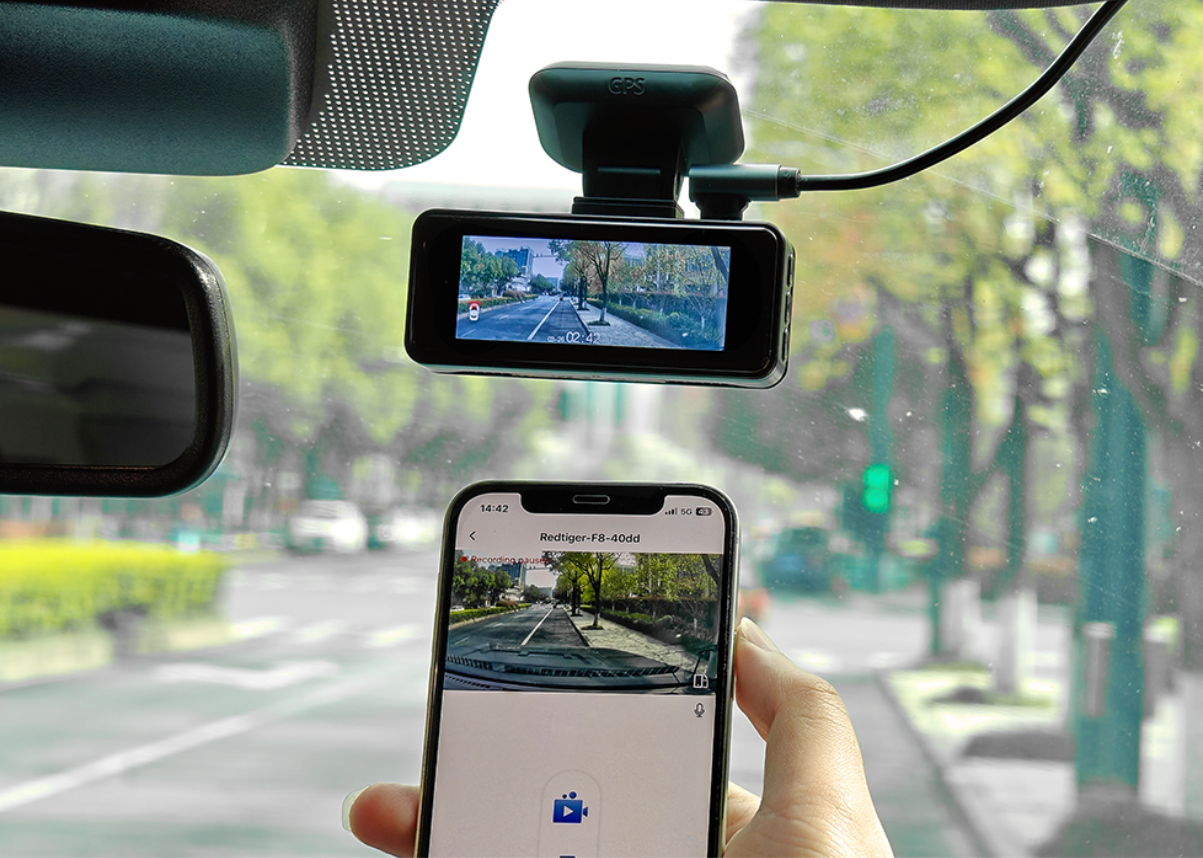
For starters, you can review footage on a much larger screen. Watching a small dash cam display is fine for quick checks, but reviewing an incident or a scenic drive on your phone is way more enjoyable. You can also easily share clips with friends, family, or insurance companies right from your phone.
Another big benefit is real-time monitoring. If your dash cam supports parking mode, you can check on your car while it's parked, giving you peace of mind when you're away. Plus, adjusting settings through the app is usually faster and more intuitive than using the small buttons on the dash cam itself.
Personal Experience and Final Thoughts
I've personally tested several Redtiger models over the years, and the mobile app experience has come a long way. In the early days, the connection was clunky and slow, but modern versions are smooth and reliable. I remember once trying to pull footage after a minor fender bender, and I was amazed at how quickly I could download the clip and send it to my insurance company. That experience alone made me a firm believer in keeping the app handy and the connection ready to go.
If you're connecting for the first time, give yourself a few minutes without distractions. The process is simple, but rushing through it can lead to small mistakes like typing the wrong WiFi password or forgetting to enable WiFi on the dash cam. Take it slow, follow the steps, and you'll be recording, reviewing, and sharing in no time.
Frequently Asked Questions
Do I need an internet connection to use the Redtiger app?
No, you don't need an active internet connection. The dash cam creates its own WiFi network, so your phone connects directly to it without using mobile data or WiFi from your home.
Can I connect multiple phones to the same dash cam?
Most Redtiger models only support one phone connection at a time. If you want to switch phones, you'll need to disconnect the first device before connecting a new one.
Will connecting to the dash cam use my phone's battery?
Yes, using WiFi can drain your phone's battery faster than normal. If you're planning a long session, consider plugging your phone into a charger.
How do I know if my dash cam has WiFi capability?
Check the model number on the back of the device and cross-reference it with the specifications on the Redtiger website. Most models released in the last few years include WiFi as a standard feature.
Can I use the app without a memory card in the dash cam?
You can still view a live preview without a memory card, but you won't be able to record or review past footage. The memory card is essential for storing video files.
Conclusion
Connecting your Redtiger dash cam to your phone is a small step that makes a huge difference in how you use the device. With the app, you can review footage, adjust settings, and share clips with just a few taps. The setup takes only a few minutes, and once it's done, you'll wonder how you ever managed without it. Whether you're a new owner or just upgraded to a new phone, take the time to get everything paired up. Your future self will thank you the next time you need quick access to your dash cam footage.